Customer & Organization Export for JSM
Customer & Organization Export for JSM adds one screen to Jira: pick a Jira Service Management project, click Export, and download a CSV of that project’s Customers and Organizations. This page covers how to open it, what each part of the screen does, and how to read the output.
01 Opening the app
Quick start: install the app from the Customer & Organization Export for JSM listing on the Atlassian Marketplace (an administrator on your Jira site installs it), then follow the steps below. Not sure whether you need an app? Read how to export JSM customers and organizations to CSV for what Jira can and cannot export natively.
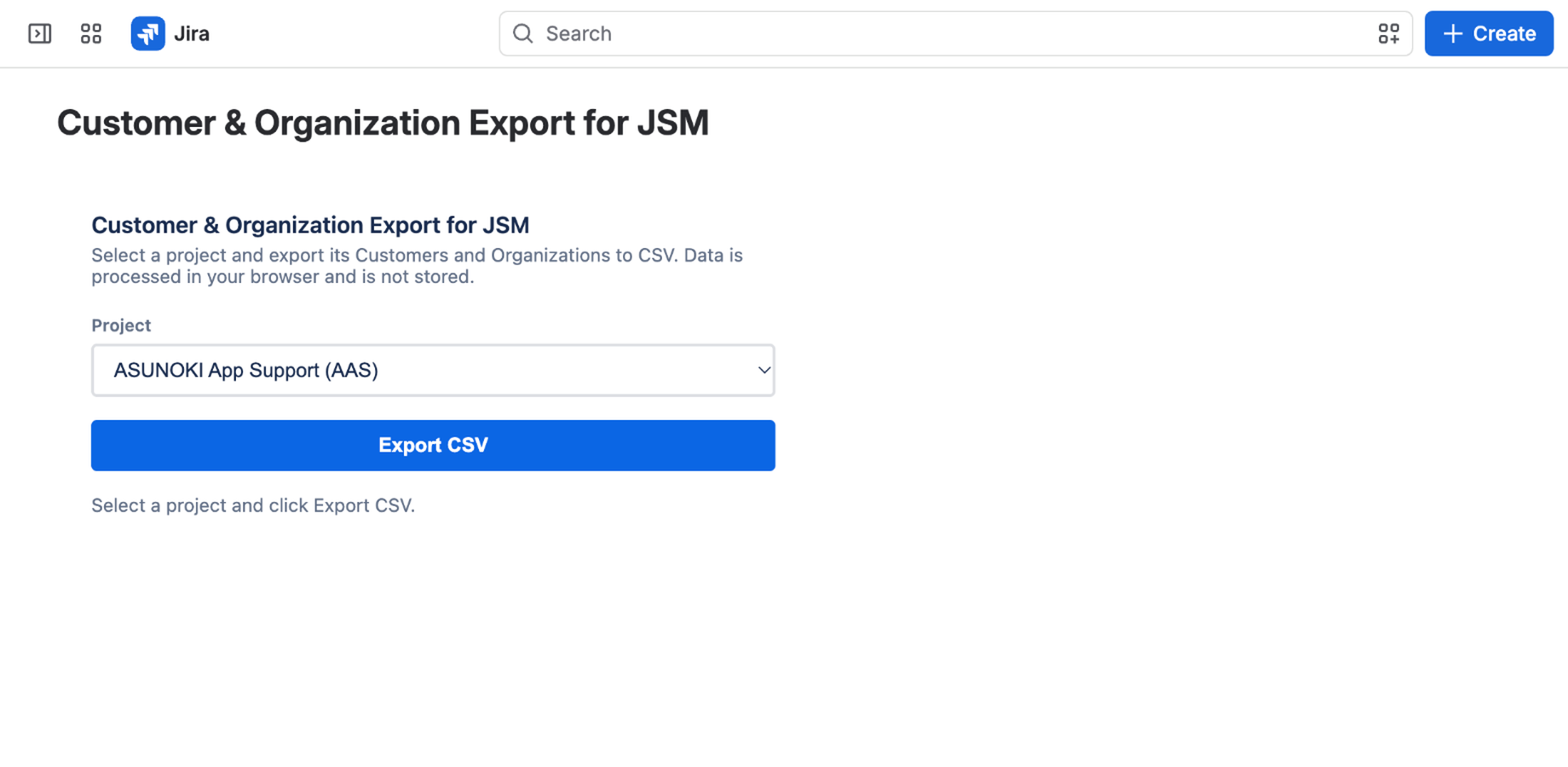
- From Jira, open the Apps menu in the left sidebar.
- Select Customer & Organization Export for JSM under your installed apps.
- Choose a project from the Project dropdown.
- Click Export CSV.
That’s the entire workflow — there is no configuration screen and nothing to set up beforehand.
Before you start. A Jira site administrator installs the app and approves its two scopes (see Security and data handling). The person who runs an export needs Service Management agent access to the project. The app does not need an API token, a script or the project’s service desk ID.
Walkthrough in screenshots
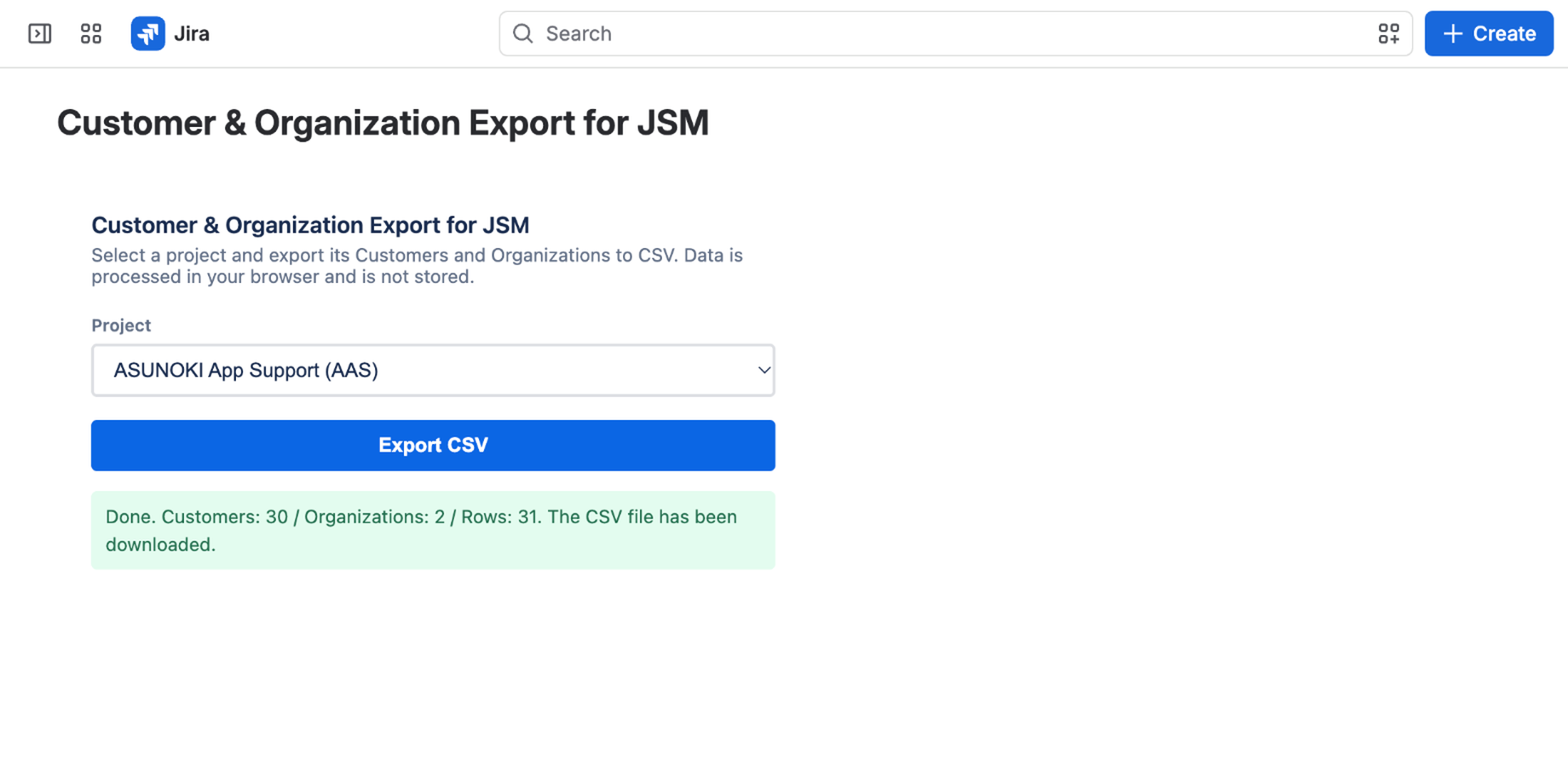
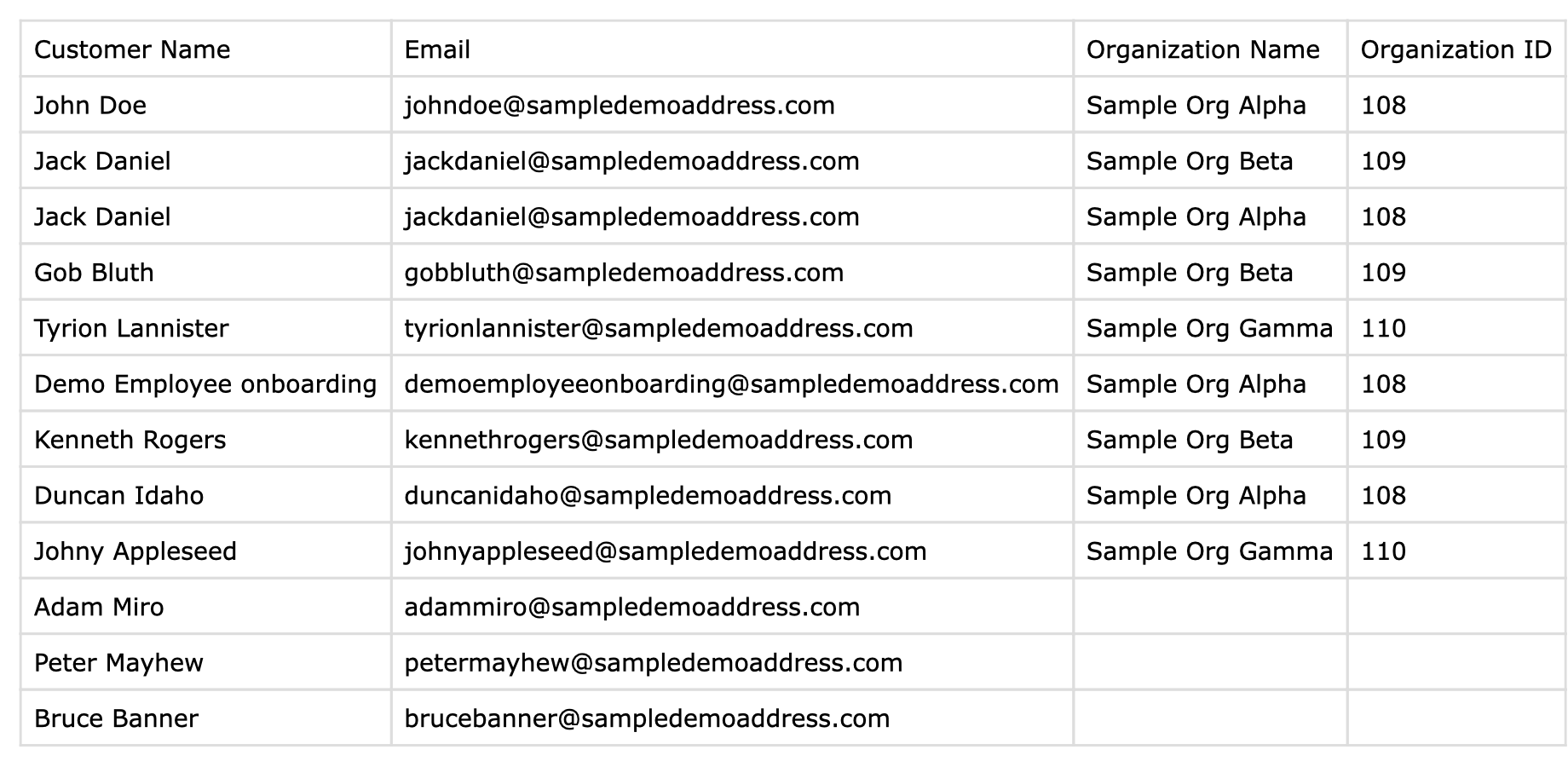
These screenshots come from a test site with sample data.
02 What happens when you click Export
Your browser calls Jira’s own REST API directly, using your own login session, to read:
- The Customers of the selected project that your account can see (name and email address).
- The Organizations linked to the selected project, and which Customers belong to each one.
A progress indicator shows which step is running (for example “Fetching Customers…”, “Fetching Organizations…”, “Generating CSV…”), and the app shows the number of Customers, Organizations and rows when it is done. Your browser then downloads a file named jsm-customers-<PROJECT KEY>.csv. The app does not upload the data or send it to any server of its own.
03 Reading the CSV
| Column | Contents |
|---|---|
| Customer Name | The Customer’s display name. |
| The Customer’s email address, if Jira returns one for your account. | |
| Organization Name | The name of an Organization (linked to this project) the Customer belongs to. Blank if the Customer belongs to none of them. |
| Organization ID | Jira’s internal ID for that Organization. Blank under the same condition as above. |
One row per membership, not per Customer. A Customer who belongs to more than one Organization appears on more than one row — once for each Organization — so that no membership is dropped to fit a single-value column. A Customer with no Organization still gets exactly one row, with the last two columns left blank.
Sample output (fictional data). Download the sample CSV.
| Customer Name | Organization Name | Organization ID | |
|---|---|---|---|
| Alex Rivera | alex.rivera@example.com | Northwind Retail | 12 |
| Alex Rivera | alex.rivera@example.com | Northwind Logistics | 15 |
| Priya Shah | priya.shah@example.org | Northwind Retail | 12 |
| Sam Lee | sam.lee@example.net |
Alex belongs to two Organizations, so Alex has two rows. Sam belongs to no Organization linked to the project, so the Organization columns are blank. The file is UTF-8 encoded. If names with accents or non-Latin characters look wrong in Excel, open the file with Data → From Text/CSV and choose UTF-8.
04 Limits
- One project per export. Choose another project and export again for the next one.
- Only what your account can see. The app reads data with the permissions of the person running it. It cannot return Customers or Organizations that your account cannot access, so the result is only as complete as your access.
- Organizations linked to the project only. Memberships in Organizations that are not linked to the selected project are not listed.
- Export only. The app does not import, create, edit or delete Customers or Organizations, and it does not filter or schedule exports.
- Experimental endpoints. Some of the Customer and Organization endpoints the app calls are marked Experimental by Atlassian and can change without notice. If one changes, the app shows a message and an app update is needed.
- Very large lists. Each list (Customers, Organizations, or the members of one Organization) is read in pages of 50, up to 1,000 pages (50,000 entries) per list.
05 Security and data handling
- No backend of its own. The app is a single page inside Jira. It has no server-side functions, no web triggers and no Forge storage.
- Your session, your permissions. Requests go from your browser to your Jira site’s REST API through Atlassian Forge, using your login. No API token is created or stored.
- The CSV stays on your device. It is generated in the browser and downloaded locally. The app does not keep a copy.
- Read-only use of a “manage” scope. The app requests
read:servicedesk-requestandmanage:servicedesk-customer. Atlassian requires the second scope for the Customer and Organization endpoints, so it appears on the consent screen even though the app only reads (it sends only GET requests). - Spreadsheet caution. Values are written as they come from Jira. Like any export of user-entered names, open the file with normal care for cells that start with
=,+,-or@.
Details are in the Privacy Policy.
06 Troubleshooting
- “You do not have permission to access this data” (a permission error). Your Jira account needs Service Management agent access to the project you selected. The app reads data with your own permissions — it cannot see anything you couldn’t already see in Jira.
- “Atlassian’s rate limit was reached” (a rate-limit message). Atlassian temporarily limited how many requests your account can make. Wait the suggested number of seconds (shown in the message, when Atlassian provides one) and try again.
- “The Atlassian API may have changed”. The Customer/Organization endpoints the app uses are marked Experimental by Atlassian, meaning their shape can change without notice. If you see this, please contact support so we can update the app.
- The export takes a while on a large project. The app reads the member lists of up to five Organizations at a time, to stay within Atlassian’s rate limits. A project with many Organizations takes longer than one with few.
- The project is not in the dropdown. The list shows the Service Management projects your account can access. Check your agent access to that project.
07 FAQ
- Does it export every Customer on the site? No. It exports one project at a time, and only what your account can see. For the site-wide list of portal-only customers, Atlassian’s built-in export may be enough — see the comparison guide.
- How is this different from the admin console’s “Export customers”? Atlassian’s admin export lists portal-only customers for the whole site, without a project filter or organizations. This app reads the selected project’s Customers list and its organizations through the Service Management API.
- Does it list everyone who could raise a request? No. It lists the project’s Customers list. If the project lets anyone on the site, or anyone by email, raise requests, people who are not on that list are not in the export.
- Can I use it for a regular access review? Yes. For example, export the project each month and compare it with your list of joiners and leavers to find customers who should be added or removed. The app does not schedule this; you run it when needed.
- Do I need an API token or a script? No. The app uses your Jira login session.
- Where is the data stored? Only in the CSV file on your device. The app has no server or storage of its own.
- Can it update Customers or Organizations from a CSV? No. It only exports.
- Who needs to install it? A Jira site administrator, from the Atlassian Marketplace. People who run exports need agent access to the project.
- Can I use it to check a migration? Yes, as a read-only check of who ended up in which Organization. See Checking customers and organizations after a JSM migration.
- Is there a free trial? Yes, through the Marketplace listing (“Try it free”). Pricing is shown on the listing.
08 Related documents
- Document index
- Checking customers and organizations after a JSM migration
- Guide: exporting JSM customers and organizations to CSV
- Customer & Organization Export for JSM on the Atlassian Marketplace
- Privacy Policy
- End User Agreement — this app uses Atlassian’s standard End User License Agreement (Bonterms Cloud Terms), applied automatically through the Atlassian Marketplace listing. No separate agreement is required.
09 Support
Use the ASUNOKI support page or email support@asunoki.jp. Both are private channels.
Never post support details in public. Please do not open public GitHub issues or community posts containing customer names, email addresses, request content, site data, API tokens or passwords. We never need a password or token to help you. Include the app name, your site URL (for example your-company.atlassian.net), what you did and the message you saw.